The short answer
- Graphics mode
- There isn’t one. GTA 6 has no performance or quality mode on any console and targets 30 fps on PS5, PS5 Pro, Xbox Series X and Series S.
- Change these first
- Motion Blur Strength to 0 (Display), Look and Aim Sensitivity up from 7 toward 9 or 10 (Controller), Movement Speed to Run (Gameplay), and Camera Shake off if you feel queasy (Camera).
- First person
- Not in the game at launch. The only first-person view is the phone: Camera > Comfort > Phone Display > First Person.
- Voice reading the menus
- Audio > Narration > Screen Narration > Off. Every setting lives under Pause Menu > Settings.
- 30 fps
- Every console
- 0
- Graphics modes
- 7 of 14
- Default sensitivity
- 3
- Control schemes
- 8 min
- Read time
- Nov 2026
- Checked on
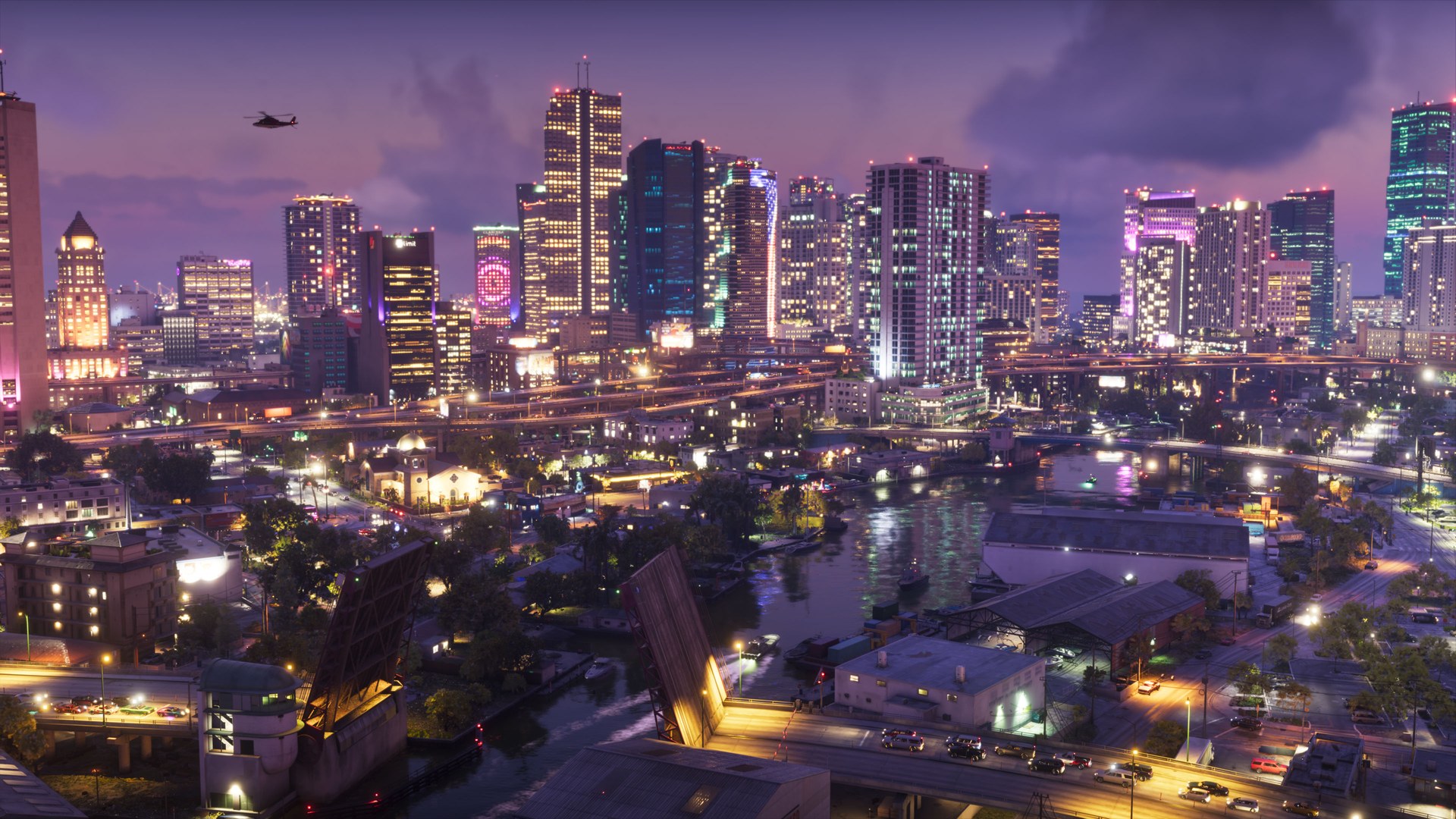
Every console runs GTA 6 at 30 fps, with no performance mode
The Display tab has no graphics, resolution or frame rate option. What changes between consoles is how sharp the image is and how often it drops below 30.
| Console | Frame rate | Image |
|---|---|---|
| PS5 Pro | 30 fps, close to locked. Big explosions can briefly dip to about 24. | Sharpest version. Renders around 1440p and PSSR rebuilds it to look close to 4K. |
| PS5 | 30 fps with small, frequent dips. Sustained drops during heavy chaos. | Around 1440p, visibly softer than the Pro. |
| Xbox Series X | Stable 30 fps most of the time. Upper 20s in fast chases and big shootouts, about 20 at worst. | Around 1440p. |
| Xbox Series S | Often mid to upper 20s while driving or fighting, about 20 at worst. | Around 720p internally, upscaled. Lower-resolution reflections, shadows, hair and clouds. |
On base PS5 and Series S, the frame rate falls hardest when you cause mayhem in crowded streets: grenade launchers, pile-ups and shootouts in busy intersections. Normal missions and cutscenes hold 30 far better. If your TV supports it, turn on 120Hz output and VRR in the console’s video settings. On Xbox Series X that should smooth out the dips. On Series S it helps less, because the frame rate drops further.
Change these settings before your first mission
Open the Pause Menu and pick Settings. The tabs run Control Scheme, Controller, Gameplay, Display, UI, Camera, Audio and Account, and L1 and R1 (LB and RB on Xbox) move between them. Each tab has Restore Default if you want to undo a change.
| Setting | Where | Default | Change to |
|---|---|---|---|
| Motion Blur Strength | Display | 3 | 0 for a cleaner image, or 1 to 2 if 30 fps feels choppy |
| Look and Aim Sensitivity | Controller | 7 (max 14) | 9 or 10 |
| Look and Aim Acceleration | Controller | 7 | Higher for a snappier camera |
| Movement Speed | Gameplay | Walk | Run, so a full stick push runs without clicking L3 |
| Combat Movement Speed | Gameplay | Fast Walk | Jog if you want faster repositioning in fights |
| Camera Shake and Camera Bob | Camera > Comfort | On and 10 | Off and 0 if you get motion sick |
| Map and Minimap Blip Size | UI > Scaling & Readability | The smaller of two sizes | Large while you learn the map, and In-World Marker Size too |
| Street Names | UI | Off | On |
| Projectile Arc | UI > Reticle | Shown only when toggled with R3 while aiming | Always on |
| Cinematic Vehicle Crash Frequency | Camera > Cinematic | 3 | 0 or 1 if the slow-motion crash cams interrupt your driving |
Leave Stand & Sprint off. With it on, pressing sprint while crouched stands you up, which can blow your cover in stealth sections.
The Display tab has brightness, motion blur and effect sliders, but no film grain or depth of field
Here is everything the Display tab offers, so you can stop looking for options that aren’t there:
- Brightness Calibration and Safe Zone.
- Player Status Effects, Hit Effects and Awareness Effects Intensity, all at 5. These are the screen effects for low health, low stamina and taking hits. Lower them if the screen gets too busy.
- Motion Blur Strength, at 3.
- Dismemberment (on or off) and Blood & Gore Intensity (High by default, three levels).
- Flashbang: Bright by default, or Dark.
- Focus Trail Colorblind Mode and Brightness Reduction, both off.
- High Contrast Shaders, off. On, it colors enemies red, allies blue and interactive objects so they stand out.
There is no film grain, depth of field, chromatic aberration or field of view slider. The closest thing to field of view is the camera height setting in the Camera tab.
How to set brightness and HDR
Calibrate HDR in your console’s own display settings first, then adjust the game. In GTA 6, go to Settings > Display > Brightness Calibration and raise or lower the value until the Rockstar logo on the test screen is just visible. Higher numbers are brighter. On some TVs the logo on the HDR maximum brightness step won’t show at all. If that happens, set it as close as you can and judge the result on a bright daytime street and a dark interior.
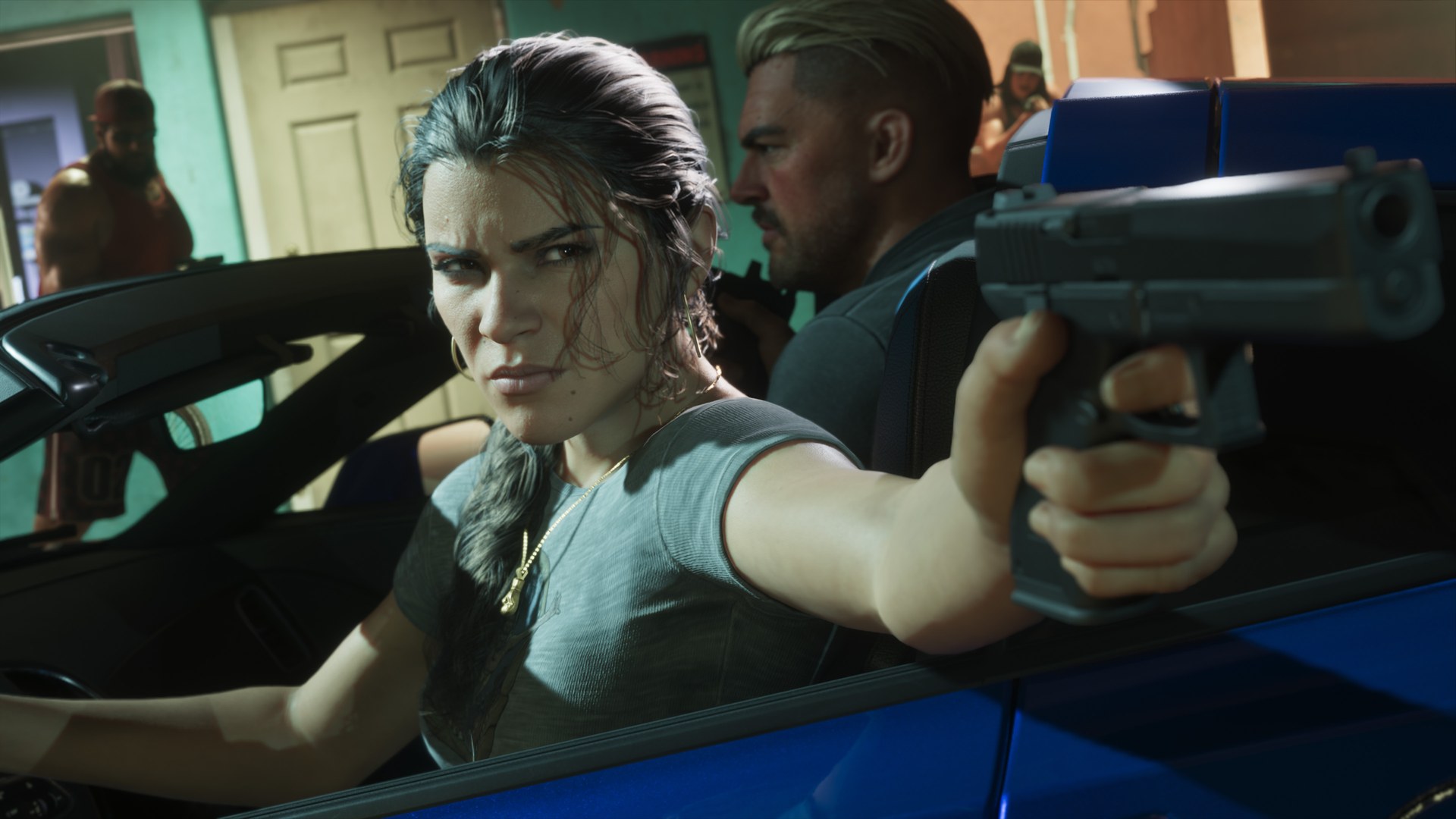
Aim settings: Partial targeting, higher sensitivity and the response curve
Under Gameplay > Combat, Targeting has three options:
- Lock-On: always tries to lock on to the nearest target. Adds Lock-On Time and Lock-On Target Switch options.
- Partial (default): your aim moves toward a nearby target but doesn’t lock on.
- Free Aim: never locks on.
Aim Assist Strength is a separate slider, default 4, that slows the reticle while it is over a target. Targeting decides how you find a target, aim assist decides how well you stay on it. For most players, Partial with aim assist at 4 is the right mix. Free Aim with aim assist kept high gives you full control of the first flick and still helps you track. Shooting Assist, Drive-By Assist and Quick Draw are on by default. Leave them on.
Under Controller, the camera feels slow at the default sensitivity of 7. Most players land between 8 and 10. Raise Look Acceleration and Aim Acceleration too, because at low values the camera ramps up slowly before it reaches full speed. Aim Response Curve has Standard (default), Linear, Precision and Aggressive. Linear makes the reticle match how far you push the stick. Standard is more forgiving if you mostly fight at close range.
On PS5, the Controller tab also has the DualSense options: vibration and haptic strength, adaptive trigger resistance and vibration, stick dead zones, and what the touchpad does (Map or Camera). Keep it on Map for one-press access to the map.
GTA 6 has no first-person mode at launch
There is no first-person camera for walking, driving or shooting, and no setting for one in the Camera or Display tabs. The only first-person view is the phone: Settings > Camera > Comfort > Phone Display > First Person shows the phone in your character’s hand when you take it out.
What you can change is the third-person camera:
- Height (On Foot) and Height (All Vehicles): Low, Medium (default) or High. High works as a wider view.
- Distance: hold down on the d-pad to bring up the camera options, then pick one of three camera distances. You can also set the touchpad (the View button on Xbox) to Camera in the Controller tab.
- Follow speed sliders for on foot, driving, passengers, aircraft and underwater.
- Weapon Sway, on by default, in Camera > Comfort.
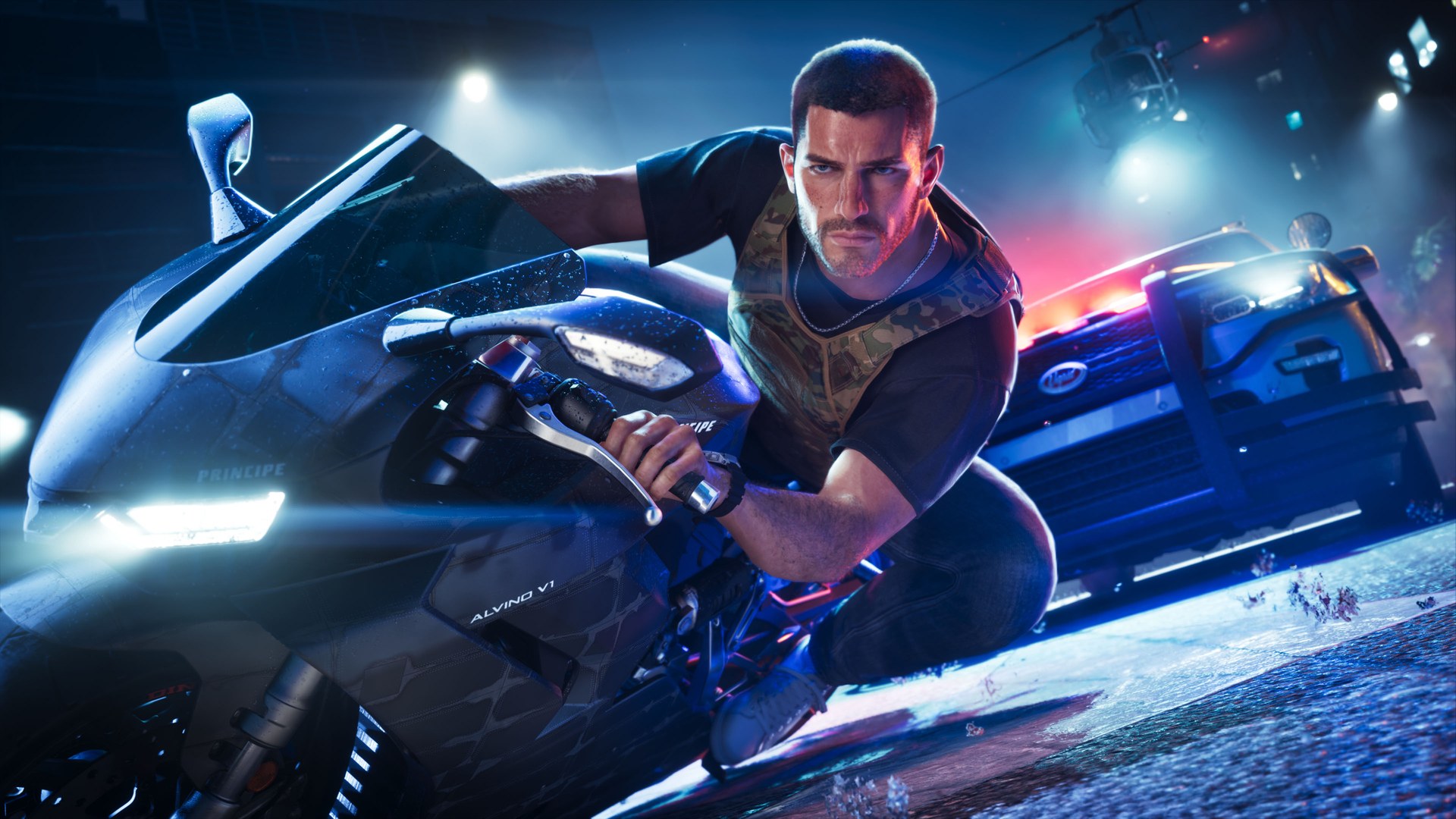
GTA 6 controls on PS5 and Xbox: run, jump, crouch, phone and radio
There are three control schemes under Settings > Control Scheme: Default, Classic and Left-Handed. Default moves run to the left stick click, which trips up players coming from GTA 5. Classic puts run back on X (A on Xbox). The Preview list shows each layout for On Foot, Aiming, Melee, Land / Water Vehicles, Aircraft, Bicycle, Swimming and Parachute before you commit.
| Action | PS5 (Default) | Xbox (Default) | Classic scheme |
|---|---|---|---|
| Run / sprint | L3, click again to sprint | Left stick click | X / A |
| Jump / climb | X | A | Square / X |
| Crouch | Circle | B | L3 / left stick click |
| Melee | Square | X | Circle / B |
| Phone | D-pad up | D-pad up | D-pad up |
| Radio | Hold d-pad left, L1 / R1 to change station | Hold d-pad left, LB / RB to change station | Same |
| Objective / minimap | D-pad down | D-pad down | Same |
| Map | Touchpad | View button | Same |
| Aim / shoot | L2 / R2 | LT / RT | Same |
| Cover | R1 | RB | Same |
| Interact | Triangle | Y | Same |
| Look behind | R3 | Right stick click | Same |
| Focus | L3 + R3 | Both stick clicks | Same |
- Crouch and sprint: you can move faster while crouched by clicking L3. Press Circle (B) again to stand.
- Radio: in a vehicle, hold d-pad left, pick a station with L1 and R1, and press X (A) on the wheel to switch the radio off. To stop it starting every time you get in a car, set Audio > Vehicle Radio to Off.
- Map zoom: on the full map, R2 should zoom in and L2 zoom out. Move around with the left stick.
- Phone: d-pad up opens it, and the d-pad moves between apps such as Messages, Contacts, Camera and Snapmatic.
Turn off the menu voice with Screen Narration in the Audio tab
If a voice is reading out every menu option, go to Settings > Audio, scroll down to Narration and turn Screen Narration off. If the voice keeps going outside the game too, it is the console: on PS5 turn off Settings > Accessibility > Screen Reader.
The rest of the accessibility options sit under Gameplay > Accessibility, and several help any player:
- Tap Assist: makes one press count as 2, 3 or 4 presses, or swaps mashing for a hold. Useful for kicking a cop out of your car.
- Hold Delay and Hold Assist: change how long you need to hold buttons for hold actions.
- Hold or press choices for Aiming, Interact, Loadout and Nitrous, plus Fishing (Rotate by default, or hold or repeated presses).
- Simplified Mini Games: off by default. Makes gym sessions, basketball and hotwiring easier.
- Auto Drive: Restricted by default. Switch to the cinematic camera while driving and the game can drive you to your waypoint. Unrestricted lets it keep driving in riskier situations.
- Auto Equip Helmet: puts a helmet on whenever you get on a bike.
- Accessible Combat and Reduced Vehicle Damage: lower enemy health, the damage you take and the damage your car takes. The game warns that both change the balance a lot. GTA 6 has no difficulty setting, so these are the only way to make fights easier, and you can turn them off again at any time.
In the Audio tab, also check Tinnitus Reduction (cuts the ringing after explosions), Controller Speaker (on by default, plays phone, GPS and cop radio audio through the controller), GPS Voice (off by default) and Mute Licensed Music for streaming. Subtitles, speaker names and text size are in the UI tab.
Settings mistakes that make GTA 6 harder
- Mistake: Hunting for a performance mode. Fix: There isn’t one on any console, so spend that time on motion blur and sensitivity instead.
- Mistake: Clicking L3 to sprint while crouched and standing up mid-stealth. Fix: Keep Stand & Sprint off.
- Mistake: Pressing both sticks to look around. Fix: L3 + R3 is Focus, which drains your focus meter. R3 alone is look behind.
- Mistake: Copying someone else’s brightness number. Fix: Calibrate against the logo on your own TV.
FAQ
Does GTA 6 have a 60 fps mode?
No. It runs at 30 fps on PS5, PS5 Pro, Xbox Series X and Series S, with no performance or quality mode.
How do I switch to first person in GTA 6?
You can’t at launch. The only first-person view is the phone, set under Camera > Comfort > Phone Display.
How do I run in GTA 6?
Click L3 (left stick) on the Default scheme, and click again to sprint. Switch to the Classic scheme to run with X or A, or set Movement Speed to Run to jog with a full stick push.
How do I crouch in GTA 6?
Circle on PS5 or B on Xbox. On the Classic scheme crouch is the left stick click.
How do I turn off the voice assistant in GTA 6?
Settings > Audio > Narration > Screen Narration > Off.
How do I change the brightness in GTA 6?
Settings > Display > Brightness Calibration. Adjust until the Rockstar logo is just visible.
Is GTA 6 better on PS5 Pro?
Yes. Both PS5 models render around 1440p, but the Pro’s PSSR upscaling makes the image look close to 4K, and its frame rate holds 30 far more steadily.
Checklist
0 of 8
Source & credit
Grand Theft Auto VI is developed and published by Rockstar Games. Menu names and defaults were read from the in-game Settings screens and checked against Rockstar Support’s settings article and settings walkthroughs by MrRoflWaffles, NorZZa, DPJ and Truds. Frame rate and resolution come from launch-day technical analysis. Images are official Rockstar Games screenshots.