
- Easy
- Difficulty
- 2 min
- Read time
If Borderlands 4 won’t start on your PC, the most common cause is Windows or antivirus software blocking the game’s files. Follow these steps to whitelist the game executables in Windows Security, Windows Defender Firewall, and (if installed) any third-party antivirus. This ensures the game has permission to run without being blocked. Thankfully, it’s pretty easy to fix the ‘Your Settings Have Failed to Save’ error despite its annoyance.
Allow Borderlands 4 Through Controlled Folder Access
- Open Settings on Windows.
- On Windows 11: go to Privacy & Security → Windows Security → Virus & threat protection.
- On Windows 10: go to Update & Security → Windows Security → Virus & threat protection.
- Scroll down and select Manage ransomware protection.
- Click Allow an app through Controlled folder access → choose Yes if prompted.
- Select Add an allowed app → Browse all apps.
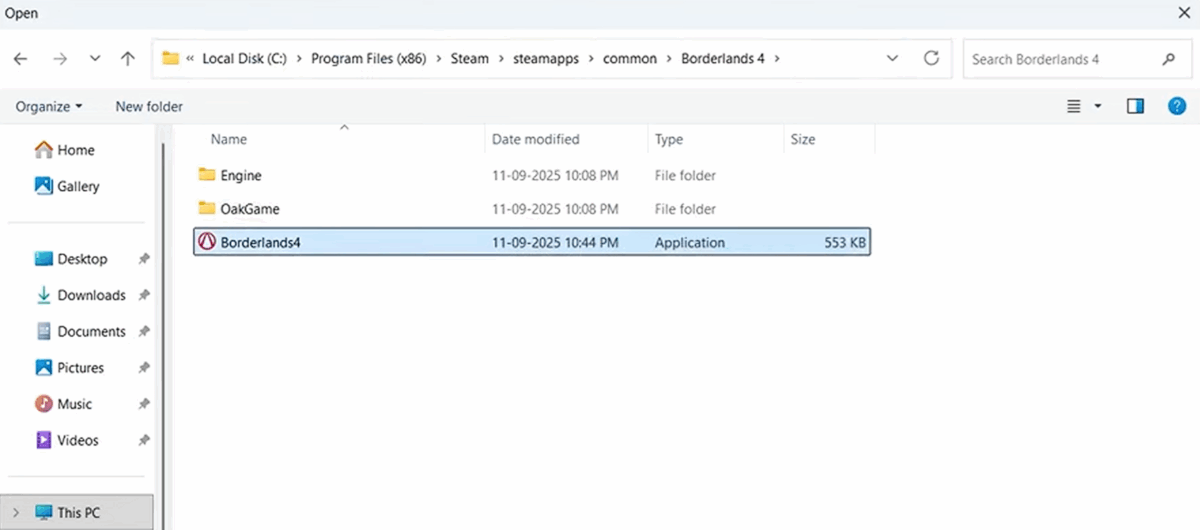
- Navigate to your Borderlands 4 install folder and select the main game
.exefile. Click Open. - Repeat the process: Add another app → Browse all apps → open Game → Binaries → Win64 and select the second game
.exefile. Click Open.
Allow Borderlands 4 Through Windows Defender Firewall
- Open the Control Panel.
- Go to System and Security → Windows Defender Firewall.
- Click Allow an app or feature through Windows Defender Firewall.
- Select Change settings.
- Click Allow another app → Browse, then select the main game
.exefrom the install folder. Click Add. - Click Allow another app again → Browse, then open Game → Binaries → Win64 and select the second
.exe. Click Add.- Both
.exefiles must be listed in the allowed apps. If they already appear, no further action is needed here.
- Both
Add Exceptions in Third-Party Antivirus (If Installed)
If you use programs like Avast, Norton, Bitdefender, or McAfee, you’ll need to add both Borderlands 4 executables to their exceptions/allowed apps list. The process is similar: open the antivirus, find Exclusions or Allowed Apps, then browse to add:
- The main game
.exe - The Win64
.exeinside Game → Binaries → Win64
Run Borderlands 4 as Administrator
If the game still won’t launch after whitelisting, try running it with admin rights.
One-time admin run
- In your launcher (Steam/Epic), right-click Borderlands 4 and select Manage → Browse local files.
- Right-click the game
.exe→ Run as administrator.
Always run as admin
- In the install folder, open Game → Binaries → Win64.
- Right-click the game
.exe→ Properties. - Open the Compatibility tab.
- Check Run this program as an administrator → Apply → OK.
- Launch the game directly from this
.exeor via your launcher.
Borderlands 4 PC Launching Troubleshooting FAQ
Do I need to add both .exe files?
Yes. Always add both the main game .exe and the one in Game → Binaries → Win64.
Where do I find the install folder?
In Steam or Epic, right-click Borderlands 4 → Manage → Browse local files.
What if I don’t see “Controlled folder access”?
It may be disabled in your version of Windows Security. Ensure Windows Security is turned on and you’re in Virus & threat protection.
Can I skip the firewall step if I already did the ransomware one?
No. Do both—ransomware protection and firewall exceptions handle different types of blocking
Borderlands 4 Your Settings Have Failed to Save Checklist
0 of 10